The procedures in this blog explain how to migrate the services from an existing SOA Suite 11g domain to SOA Suite 12c (12.1.x or 12.2.x).
Link to download intsaller
SOA 12c Quick
Start download link: https://edelivery.oracle.com/osdc/faces/Home.jspx
JDK
download link: http://www.oracle.com/technetwork/java/javase/downloads/jdk8-downloads-2133151.html
12c Installation- Setting up local machine
Download the JDK version 1.8 and install it
http://www.oracle.com/technetwork/java/javase/downloads/jdk8-downloads-2133151.html

SOA 12c(12.2.1.2.0)Quickstart Download and Extraction:
Oracle BPM Suite version (12.2.1.2.0) can be downloaded from the Oracle
Software Delivery Cloud - edelivery.oracle.com (https://edelivery.oracle.com/osdc/faces/Home.jspx)
The Oracle
SOA Suite for Oracle Middleware (BPM, FMW, Service Oriented Architecture)
product must be selected here for BPM Suite Quick Start (files fmw_12.2.1.2.0_bpm_quickstart.jar
and fmw_12.2.1.2.0_bpm_quickstart2.jar).Need to select the exact
operating system specification before downloading the files.

The product is put into the download queue.


Once the Continue button has been pressed, the standard Oracle license appears, the user has to read and accept that.

The links on each file from the package will be
displayed. The files can be downloaded by Download Manager or just by
the browser, each link is clickable.

In order to install BPM Suite Quick Start, the first two files
are enough. The archives must be extracted in the same folder, so files fmw_12.2.1.2.0_bpm_quickstart.jar
and fmw_12.2.1.2.0_bpm_quickstart2.jar will be together. The first file
is an executable java archive.
SOA-12c installation Steps:

Go to the bin folder of installed
jdk and run the below command to start the SOA 12c quickstart installation
C:\Program
Files\Java\jdk1.8.0_161\bin>java -jar
C:\OracleQuickstratsoftware\V779125-01_1of2\fmw_12.2.1.2.0_bpm_quickstart.jar


NB: Here ‘C:\OracleQuickstratsoftware\V779125-01_1of2’
is the path where jar extracted
Oracle Universal Installer appears and the installation starts. The first master window appears
and notices about the version to be installed.

The next step proposes to select a directory
downloaded patches are in or specify username and password available for access
to mysupport.oracle.com. If the credentials are specified, the available
patches will be downloaded automatically. The user can skip any auto updates.

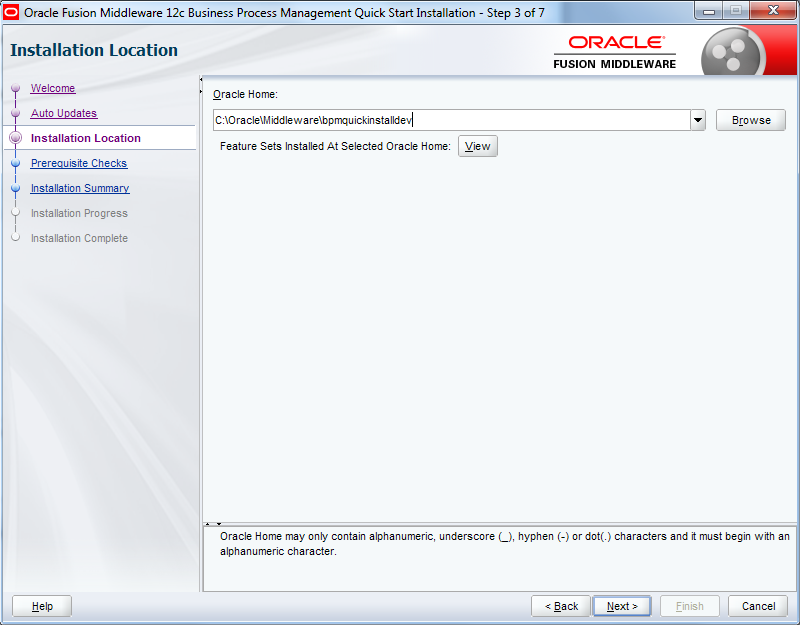
Once the Next button has been clicked, the
installation master checks the environment: operating system and JDK compatibility.

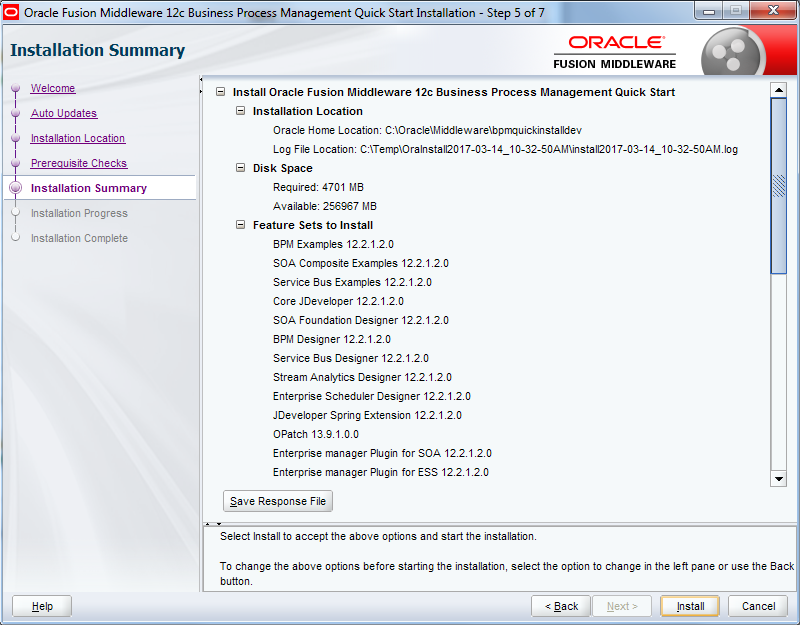
The next step precedes the installation, all
specified parameters might be checked once again.



No comments:
Post a Comment